
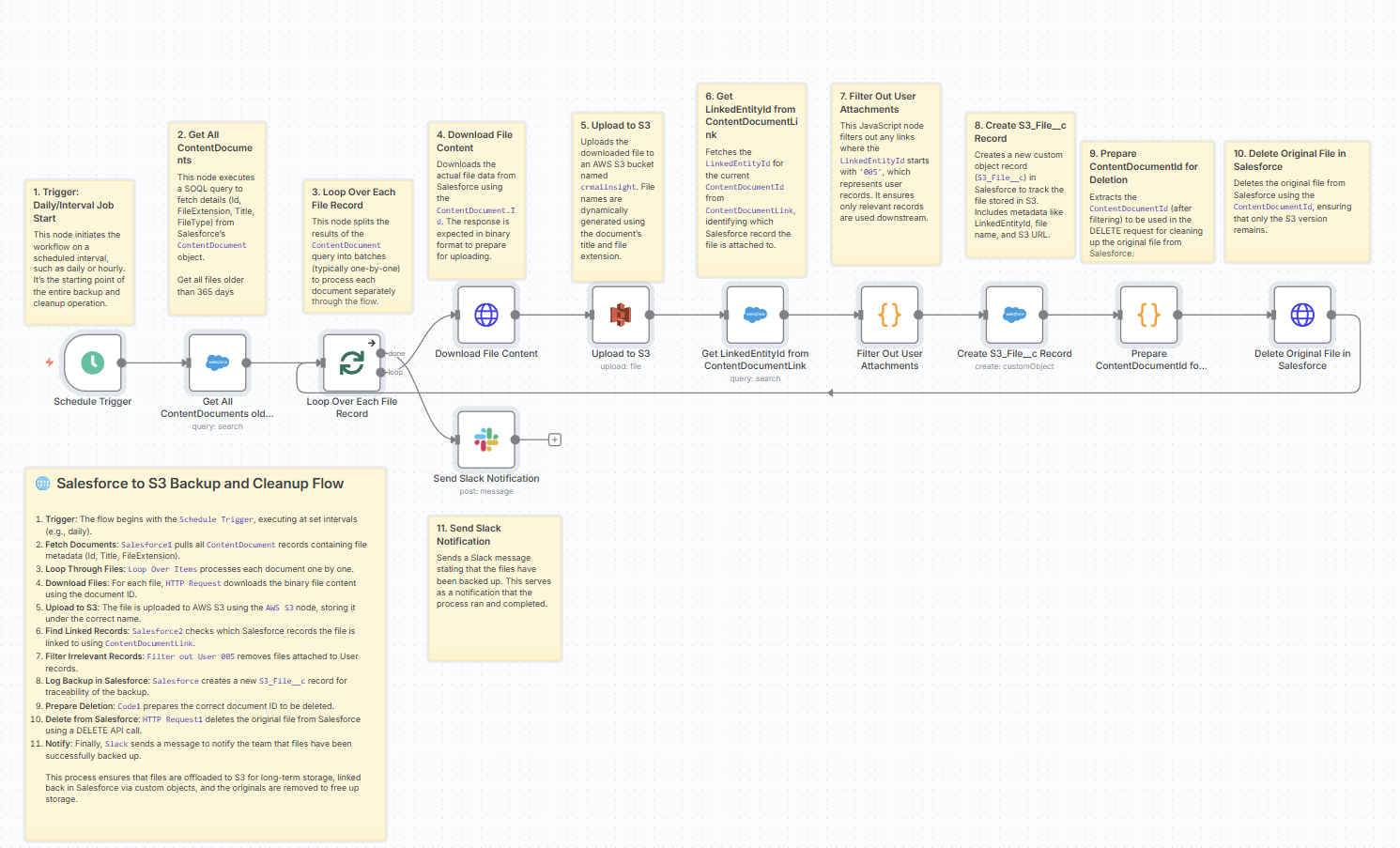
How to escape file storage limits without losing visibility in Salesforce
https://n8n.io/workflows/6305-salesforce-to-s3-file-migration-and-cleanup/
If you’ve worked with Salesforce for more than a few years, you’ve almost certainly had this conversation:
“We’re running out of file storage again.”
“Can we just… delete old files?”
“Not without a backup. And we still need to know what was attached to what.”
Salesforce is fantastic for managing customer data, but it’s not a cheap or flexible place to park gigabytes of PDFs, contracts, reports, and exports forever. As orgs mature, files quietly become one of the biggest sources of bloat and a real operational headache.
That’s exactly the problem this Salesforce → S3 File Migration & Cleanup flow is designed to solve.
This article walks through:
- Why file storage is so painful inside Salesforce
- The technical limitations when trying to “fix it” purely with Salesforce tools
- How an n8n + S3–based workflow can automatically archive, clean up, and still give you full visibility from Salesforce
Why large files are painful inside Salesforce
1. File storage is expensive and hard-capped
Salesforce file storage is:
- Charged separately from data storage
- Allocated per license and does not auto-scale cheaply
- Consumed extremely quickly by:
- Email attachments
- User uploads (screenshots, exports)
- Auto-generated reports, signed contracts, etc.
Once you hit the threshold, your options are:
- Buy more file storage (recurring cost), or
- Start deleting… carefully.
Neither is attractive if you have compliance requirements or want a proper audit trail.
2. Bulk migration from within Salesforce hits platform limits
You can write Apex and Flows to move or manipulate files, but you quickly run into:
- Governor limits
- Heap size limits when working with large binary blobs
- CPU time limits when processing many files in a single transaction
- Strict limits on how many SOQL queries / DML operations you can perform
- REST / Apex callout limits
- Moving large binaries via callouts is constrained by body size and memory
- Complex orchestration required if you want to chunk, stream, or retry
- Operational complexity
- Handling
ContentDocument,ContentVersion, andContentDocumentLinkcorrectly - Ensuring you don’t accidentally delete files still actively in use
- Building reporting and traceability on what was archived
- Handling
In short: Salesforce is not a file-migration platform. It’s a CRM platform with some file capabilities.
3. Cleanup without losing access is tricky
Admins usually want three things:
- Free up storage
- Keep a backup somewhere cheaper (like S3)
- Still be able to see, from a Salesforce record, what files existed and where they are now
Out of the box, Salesforce gives you either:
- Keep files in Salesforce → expensive but convenient, or
- Export/delete files manually → cheap but blind (no easy way to know what was linked where over time).
What’s missing is a pattern that:
- Moves the binary out to cheap storage
- Cleans up the original in Salesforce
- Leaves behind a clickable, queryable trace of every file that ever existed
The architecture: Salesforce + n8n + S3
The Salesforce to S3 File Migration & Cleanup solution does exactly that using three main components:
- Salesforce
- Source of truth for
ContentDocumentandContentDocumentLink - Custom object
S3_File__cto track archived files - Optional LWC to view/download archived files from record pages
- Source of truth for
- n8n workflow
- Orchestration engine that queries Salesforce, downloads files, pushes them to S3, logs them back, and cleans up
- Runs on a schedule (e.g., daily) — no manual buttons to push
- Amazon S3
- Long-term, cost-effective file storage
- Accessible via pre-signed URLs or via your existing data lake patterns
How the n8n flow works (step-by-step)
Here’s what the published n8n workflow does under the hood.
1. Schedule Trigger – “Set it and forget it”
A Schedule Trigger node starts the workflow on an interval you define:
- Daily at midnight
- Weekly on Sundays
- Or any cron expression you like
This turns file cleanup into a regular maintenance job, not a one-off emergency.
2. Query old ContentDocuments from Salesforce
A Salesforce node runs a SOQL query:
SELECT Id, FileExtension, Title, FileType
FROM ContentDocument
WHERE CreatedDate < N_DAYS_AGO:365
This means:
- You only target files older than 365 days (adjustable)
- You avoid touching recent or active files
- You control the “retention policy” purely via query logic
3. Loop through each file
A Split In Batches / Loop node processes each ContentDocument one by one, which:
- Avoids overloading Salesforce or n8n with huge bulk operations
- Makes it easier to handle failures/retries at a per-file level
- Keeps resource usage predictable
4. Download file content via REST
For each file, an HTTP Request node calls the Salesforce Files REST API:
- Uses the
ContentDocumentId to fetch the binary content - Receives the response as a file/binary object in n8n
- This avoids needing Apex to handle binary blobs
You sidestep heap size and Apex limits by doing the heavy lifting outside Salesforce.
5. Upload to S3 with the original filename
An AWS S3 node:
- Uploads the binary file into your S3 bucket (e.g.,
crmaiinsight) - Uses a dynamic filename like:
Title.FileExtension→ e.g.,Signed_Contract_2019.pdf
You can extend this easily to:
- Folder by year / object type
- Prefix with org or environment
- Include ContentDocumentId in the key for uniqueness
6. Resolve where the file was linked (ContentDocumentLink)
Next, a Salesforce search node queries ContentDocumentLink:
SELECT Id, LinkedEntityId, ContentDocumentId, IsDeleted
FROM ContentDocumentLink
WHERE ContentDocumentId = '{current ContentDocument Id}'
This tells you:
- Which record(s) the file was attached to (Account, Opportunity, Case, custom object, etc.)
- Whether there are multiple parents
- Which parent should be used for your
S3_File__crecord
7. Filter out user attachments
A Code node then:
- Filters out any
LinkedEntityIdthat starts with'005'- In Salesforce,
'005'usually indicates User records
- In Salesforce,
- Ensures the archival & logging focuses on business records, not user profile photos or chatter avatars
This keeps your S3 log clean and relevant.
8. Log an S3_File__c record back in Salesforce
A Salesforce node creates a record of type S3_File__c with fields such as:
Object_Id__c→ theLinkedEntityIdof the parent recordFile_Name__c→Title.FileExtensionS3_URL__c→ the S3 object URL or a pre-signed link pattern
This gives you:
- Full traceability: every archived file is represented as a record
- Easy reporting: run SOQL reports on archived files per object, per year, etc.
- A foundation for UI: you can surface this in related lists or LWCs
9. Prepare and delete the original ContentDocument
Once archived and logged:
- A Code node extracts the
ContentDocumentId - An HTTP Request node sends a
DELETEto Salesforce’s Files API:
DELETE /services/data/vXX.X/connect/files/{ContentDocumentId}
This:
- Removes the original file from Salesforce
- Immediately frees up file storage space
- Leaves behind the S3_File__c record as a breadcrumb
Because you’ve already:
- Backed it up to S3
- Logged it via
S3_File__c
…you can delete confidently.
10. Notify the team in Slack
Finally, a Slack node posts something like:
“Salesforce to S3 cleanup: X files archived and deleted successfully.”
This gives admins / ops teams:
- Peace of mind that the job ran
- A quick alert if something fails or if counts look suspicious
- An easy audit trail in your team’s Slack history
Keeping backups accessible inside Salesforce

One of the biggest objections to moving files out of Salesforce is:
“But my users still need to see what was there.”
That’s exactly why the solution uses the S3_File__c custom object and (optionally) an LWC.
Typical pattern:
S3_File__chas lookups to the parent object (Object_Id__c)- A related list or LWC component (
s3FilesViewer) is added to the parent page layout - Users can:
- See a list of archived files
- Click a link to open/download from S3 (often via a pre-signed URL with expiry)
From the user’s perspective:
- “Old files” are still visible on the record
- You can visually separate On-Platform Files vs Archived to S3
- Nothing feels “lost”, even though you’ve dramatically cut storage usage
Why not just do this all in Salesforce?
You could try to build something similar with pure Salesforce tools:
- Apex batch classes to process
ContentDocuments - Callouts to S3 from Apex
- Custom metadata for S3 config
- Complex retry logic to respect limits
But you’d be fighting:
- Governor limits (heap, CPU, queries)
- Deployment cycles and test coverage
- Operational overhead of monitoring batch jobs
By pushing orchestration into n8n and storage into S3, you get:
- A visual, low-code workflow that’s easy to maintain
- Native nodes for HTTP, AWS S3, Slack, etc.
- Freedom from Salesforce’s runtime constraints for the “heavy lifting”
Salesforce becomes what it’s best at: data + UI + security model, not a file processing engine.
When this pattern is a great fit
This Salesforce → S3 migration & cleanup flow is ideal if:
- Your org is constantly hitting file storage limits
- You must retain historical documents but don’t need them on-platform
- You want traceable, reversible cleanup (you always know what was archived, when, and where)
- You’re comfortable using or adopting n8n for background jobs and integrations
It’s especially powerful for:
- Long-running orgs with years of attachments
- High-volume case or opportunity orgs with lots of PDFs/images
- Managed service / multi-org consultancies who want a repeatable pattern for clients
Summary
Salesforce’s native file capabilities are great for day-to-day work, but they’re not designed for long-term, large-scale file retention and migration. Storage is expensive, platform limits are strict, and “just delete some files” is never as simple as it sounds.
The Salesforce to S3 File Migration & Cleanup flow:
- Offloads old files to S3
- Logs every archived file back into Salesforce via
S3_File__c - Cleans up the originals to free storage
- Keeps access easy for users through related lists or custom UI
- Automates everything on a schedule with Slack notifications
You end up with a Salesforce org that’s lean, compliant, and still user-friendly — and a file archive that lives where big files actually belong.
 Le Nguyen's Blog