
Have you ever hit “APEX CPU time limit exceeded” or “Query Timeout” while querying only ~1,000 records? If your dataset is small (a few thousand rows), you may never notice. But once an object grows to hundreds of thousands or millions of records, non-selective filters (or filters that don’t leverage indexes) can slow queries significantly.
In Salesforce, one of the most reliable ways to improve query performance is to make your SOQL selective by filtering on indexed fields (standard indexes or custom indexes, typically via External ID fields). This article focuses on one practical pattern: replacing date conditions with a custom indexed numeric/text field to improve performance on large datasets.
Test Setup: A Large Object with a Date Field
To demonstrate the impact of indexing, create a test object:
Performance_Test__c
- Test_1__c … Test_10__c (Text)
- Start_Date__c (Date)

Next, generate test data at scale (e.g., 1,000,000+ records) with random text and a spread of dates.
Batch to generate records (example)
//A batch to create 1000 records for each Start Date with random texts. public class GeneratePerformanceRecordBatch implements Database.Batchable<Date> { list<Date> processDate; public GeneratePerformanceRecordBatch(List<Date> lstDate){ processDate = lstDate; } public Iterable<Date> start(Database.BatchableContext BC){ return processDate; } public void execute (Database.BatchableContext BC, List<Date> scope){ List<Performance_Test__c> lst1000 = new List<Performance_Test__c>(); for(Date d : Scope){ For(integer i = 0; i < 1000; i++){ Performance_Test__c pt = new Performance_Test__c(); pt.Start_Date__c = d; pt.Test_1__c = RandomString(); pt.Test_2__c = RandomString(); pt.Test_3__c = RandomString(); pt.Test_4__c = RandomString(); pt.Test_5__c = RandomString(); pt.Test_6__c = RandomString(); pt.Test_7__c = RandomString(); pt.Test_8__c = RandomString(); pt.Test_9__c = RandomString(); pt.Test_10__c = RandomString(); lst1000.add(pt); } } insert lst1000; } public void finish (Database.BatchableContext BC){ } private string RandomString(){ integer listLength = Constants.RanromStrings.Size() - 1; Integer randomNumber = Integer.valueOf(Math.random() * listLength); return Constants.RanromStrings[randomNumber]; } }
Baseline: Query by Date on a Very Large Table
Now measure query time for a single date:
Decimal sTime = System.Now().GetTime();Date d = Date.newInstance(2021, 07, 22);List<Performance_Test__c> pts = [select Id, Test_1__c, Test_2__c, Test_3__c, Test_4__c, Start_Date__c from Performance_Test__c where Start_Date__c = :d];Decimal fTime = System.Now().GetTime();System.debug('Time To Query : ' + (fTime - sTime) / 1000);
Example observed results:

~1.6 seconds for ~1,000 records when the table is ~1M rows


~3.5 seconds for the same filter when the table grows to ~2M rows
Even if your query returns only 1,000 rows, the database may still scan a large portion of the table if the filter is not selective enough or not using an index efficiently. Add additional business logic and you can hit CPU limits quickly.
Strategy: Add a Custom Indexed “Date Key” Field
Salesforce does not allow a Date field to be an External ID directly. The workaround is to create a Number or Text field that represents the date in a sortable format such as:
yyyyMMdd(e.g., 20200723)
I prefer Number for easy comparisons:
- 20200723 < 20200823
Create a new field
On Performance_Test__c:
Mark as External ID (this creates a custom index)
Date_Index__c (Number, 0 decimals)

Backfill the Index Field for Existing Records
You can populate this field using Batch Apex (handles very large volumes).
//Sample Batch Code to Generate a Number field as Date index with format yyyyMMddpublic class GenerateIndexBatch implements Database.Batchable<SObject> { string query; public GenerateIndexBatch(){ } public Database.QueryLocator start(Database.BatchableContext BC){ query = 'select id,Start_Date__c from Performance_Test__c'; return Database.getQueryLocator(query); } public void execute (Database.BatchableContext BC, List<Performance_Test__c> scope){ List<Performance_Test__c> updateIndex = new List<Performance_Test__c>(); for(Performance_Test__c pt : Scope){ DateTime dt = DateTime.newInstanceGmt(pt.Start_Date__c, Time.newInstance(12 , 0, 0, 0)); Performance_Test__c p = new Performance_Test__c(); p.id = pt.id; p.Date_Index__c = Decimal.valueOf(dt.formatGmt('yyyyMMdd')); updateIndex.add(p); } update updateIndex; } public void finish (Database.BatchableContext BC){ }}
For ongoing correctness, keep Date_Index__c in sync via a before insert/before update trigger (or a Record-Triggered Flow if you’re careful about bulk + performance—trigger is usually leaner for hot paths).
Query Using the Indexed Field
Now replace the date filter with the indexed key:
//Rather than using Start_Date__c =, we use Date_Index__c = a number now.Decimal sTime = System.Now().GetTime();List<Performance_Test__c> pts = [select Id, Test_1__c, Test_2__c, Test_3__c, Test_4__c, Start_Date__c from Performance_Test__c where Date_Index__c = 20200723];Decimal fTime = System.Now().GetTime();System.debug('Time To Query : ' + (fTime - sTime) / 1000);
In practice, this typically produces a dramatic improvement because the filter can leverage the custom index on Date_Index__c, making the query far more selective on large datasets.
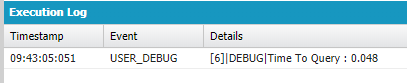
Compare to:

Let try another query with in operation.


“IN” / Range Queries (Same Idea)
This approach also helps when you need:
IN (20200723, 20200724, ...)- ranges like
Date_Index__c >= 20200701 AND Date_Index__c <= 20200731
Since the field is indexed, these patterns often perform much better than equivalent date filters on non-indexed or non-selective criteria.
Key Takeaways
- Slow queries on very large objects are often caused by non-selective filters.
- Salesforce performance improves significantly when SOQL filters use indexed fields.
- If you frequently filter by a Date field at high volume, a custom indexed date key (External ID) can be a practical workaround.
- Backfill once with Batch Apex, then maintain with a lightweight trigger to keep the field current.
If you want, I can also refine this further by adding:
- a selective query checklist (what Salesforce considers “selective”),
- example trigger to maintain
Date_Index__c, - notes on when this pattern is not appropriate (e.g., low cardinality dates, skew, etc.).
 Le Nguyen's Blog